
DLSS, FSR, XeSS Guide: What Do "Quality, Balanced, Performance" Mean in Game Menus, and Which Should You Choose?
What do DLSS, FSR and XeSS, and the Quality, Balanced and Performance modes, actually do? Which to pick for your display resolution and graphics card, and the limits of frame generation, step by step.
What does image upscaling do?
One of the main factors that determines GPU load is the number of pixels it has to calculate for every frame. At 4K resolution, each frame contains more than 8 million pixels — four times as many as 1080p.

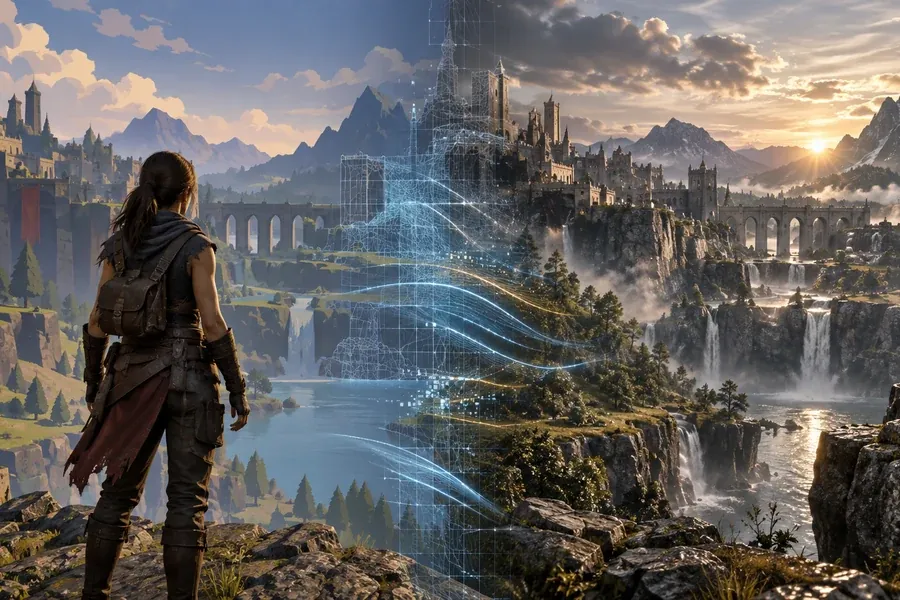
Image upscaling reduces that workload. The game renders each frame at a lower "internal resolution," then the upscaling technology reconstructs that image at your display's native resolution. To do this, it can use not only the current frame, but also information from previous frames and motion data. Some newer methods use AI models for this reconstruction process, while others rely on traditional algorithms.
The result: the GPU has fewer pixels to render, so frame rates increase, while a good upscaler can keep the image looking close to native resolution.
The three major technologies
DLSS (NVIDIA): Works only on NVIDIA RTX graphics cards because it uses their Tensor cores. DLSS has long been considered the reference point for image quality, and it is especially strong at preserving detail when the internal resolution is low, such as in Performance mode.
FSR (AMD): AMD's technology. Older FSR versions use non-AI methods and can run on a very wide range of graphics cards, including NVIDIA GPUs. AMD's newer FSR Upscaling system is based on machine learning and has narrowed the quality gap considerably. It is currently supported on the RX 7000 and RX 9000 series, although hardware support for the other AI features under AMD's "Redstone" umbrella is not identical.
XeSS (Intel): Intel's technology. On Intel Arc graphics cards, it uses a hardware-specific optimized path; on supported AMD and NVIDIA GPUs, it can run through a cross-vendor implementation. The result can vary depending on the graphics card and how well the game integrates it.
What do the modes in the menu mean?
Upscaling modes determine the internal resolution at which the game is rendered. The values below are approximate; the exact internal resolution of a mode with the same name can vary by a few percentage points depending on DLSS, FSR, and the game's implementation.
| Mode | Internal resolution scale (width/height) | On a 4K display | On a 1440p display | On a 1080p display |
|---|---|---|---|---|
| Quality | ~67% | 1440p | 960p | 720p |
| Balanced | ~58–59% | ~1253–1270p | ~835–847p | ~626–635p |
| Performance | 50% | 1080p | 720p | 540p |
| Ultra Performance | ~33% | 720p | 480p | 360p |
XeSS ratios can vary somewhat depending on the version, but the idea is the same: as you move from Quality toward Ultra Performance, the internal resolution drops, frame rates rise, and image quality decreases.
Some games also include another option: DLAA (NVIDIA) or similar "native anti-aliasing" modes. These do not lower the resolution; instead, they use the same reconstruction technology purely to improve image quality. If performance is already high enough, this is usually the option aimed at delivering the best image quality.
The main rule: Look at your display resolution
The most important column in the table is the one that matches your own screen resolution. That is because upscaling works better when it has more source information to reconstruct from.
- 4K display: This is where upscaling has the most room to work. Even in Performance mode, the internal resolution is still 1080p, giving the technology more information to reconstruct from. Quality or Balanced are usually good starting points, while Performance can also be very useful in demanding games.
- 1440p display: Quality or Balanced usually offers a good compromise. In Performance mode, the internal resolution drops to 720p and the difference starts to become more noticeable.
- 1080p display: This is more challenging for upscaling. Even Quality mode renders internally at 720p. So it usually makes sense to start with Quality; lower modes can still be tried when extra performance is needed, but the loss in image quality is easier to notice.
Which technology should you choose?
If a game offers more than one option, the technology from your GPU manufacturer is usually a good starting point — but it is not an absolute rule. The same technology can be implemented with different levels of quality from one game to another.
- NVIDIA RTX: DLSS. FSR also works on these cards, but it generally delivers lower image quality.
- AMD RX 7000 and RX 9000: If the game offers the newer machine-learning-based FSR Upscaling option, try that first.
- Older AMD cards: Use the newest FSR version your GPU supports.
- Intel Arc: XeSS.
- NVIDIA GTX series (older cards): Since they do not support DLSS, use FSR or XeSS. The best approach is to try both and keep whichever looks better.
Frame generation is a separate thing
Graphics menus often place "frame generation" next to upscaling options. This is a different technology: instead of reducing resolution, it inserts calculated intermediate frames between real rendered frames. Depending on the method, this can involve motion data, optical flow analysis, or machine learning.

It can increase the frame-rate counter dramatically, but there are two important limitations:
- It does not increase responsiveness at the same rate as the displayed frame rate. Generated intermediate frames do not contain a new game simulation step or new player input. So a counter showing 120 FPS does not mean the game responds exactly like true 120 FPS rendering. Latency-reduction technologies such as NVIDIA Reflex and AMD Anti-Lag can compensate for this to a significant degree.
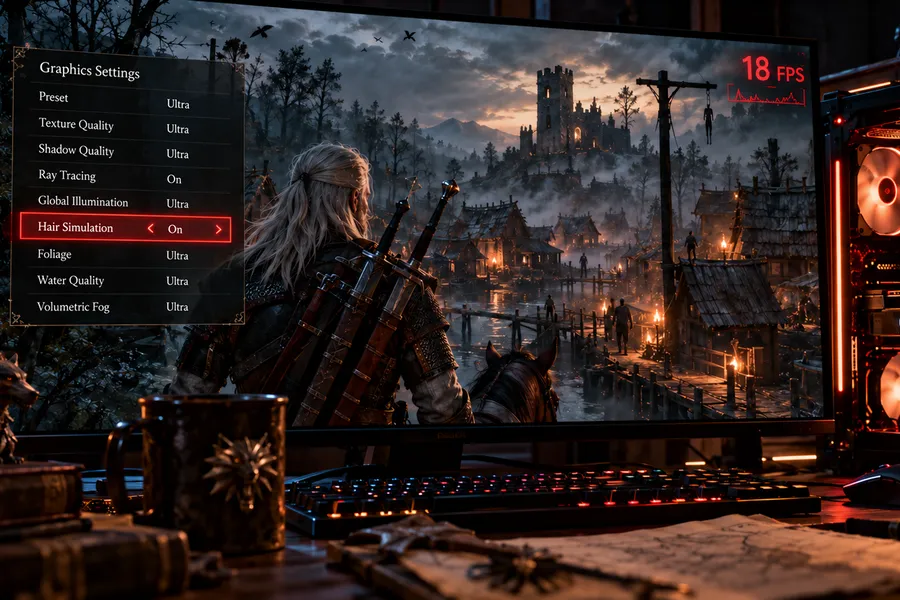
- It cannot magically fix a very low base frame rate. Frame generation generally looks and feels better when it starts from a higher, more stable base frame rate. Some implementations recommend a base of around 60 FPS, while newer solutions can operate at lower input frame rates as well. In other words, there is no universal "60 FPS required" rule — but a game struggling at 25–30 FPS does not suddenly become equivalent to a true 60 FPS experience just because frame generation is enabled.
In short, frame generation is a tool for making an already well-running game look smoother, not for rescuing a game that runs badly.
What about consoles?
For console players, most of these choices are handled by the developer. The PS5 Pro uses Sony's own AI upscaling technology called PSSR. The standard PS5 has also recently received QSSR, a lighter version of PSSR. Many console games use different versions of FSR as well. On consoles, players usually choose only between modes such as "Performance" and "Quality," while different upscaling settings often operate behind those modes.
Check with your own eyes
Tables and rules are only a starting point; the final decision should always be made on your own display, with your own eyes. When comparing modes, pay attention to two things:
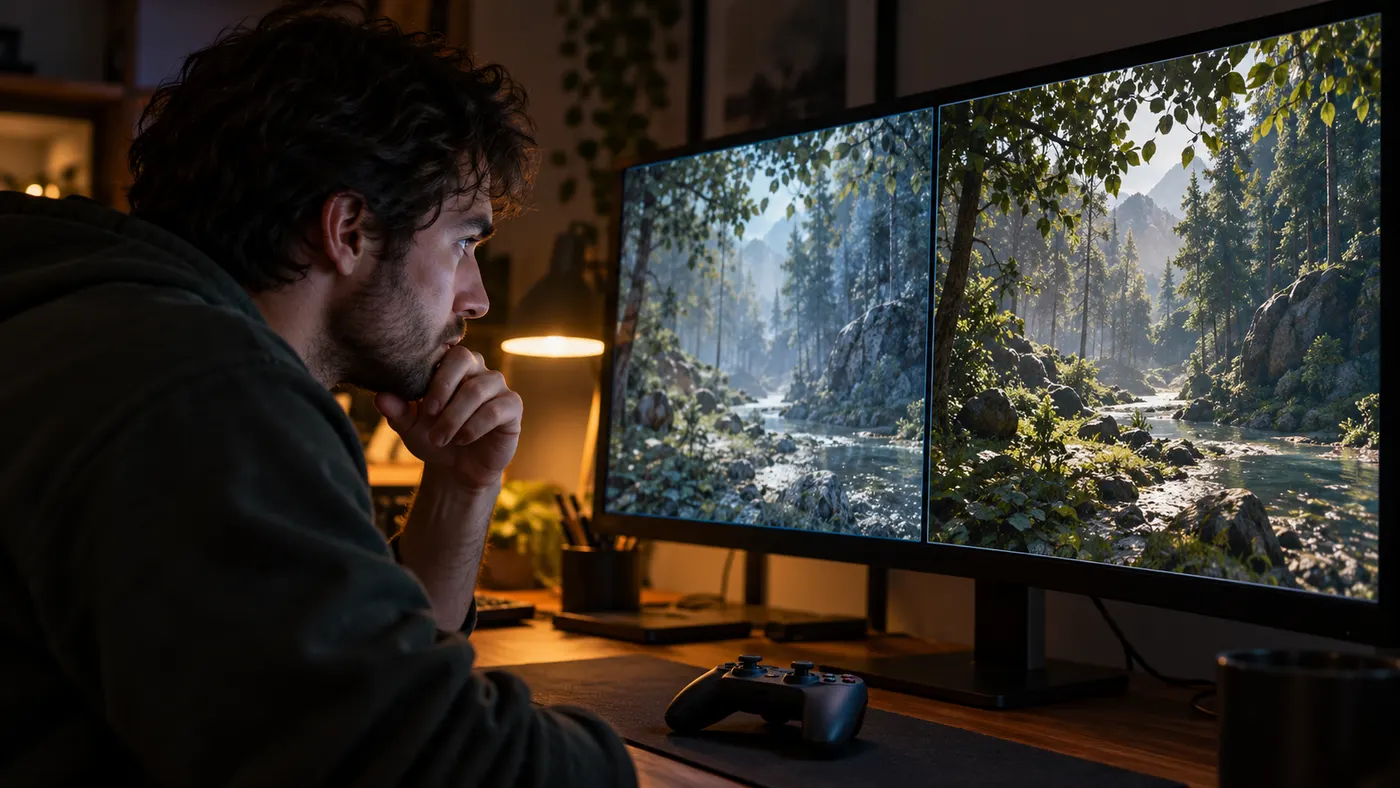
- Look while the image is moving. Upscaling artifacts often appear not in a static frame, but while the camera is moving: shimmering edges, or "ghost" trails behind moving objects.
- Look at difficult details. Fine elements such as tree leaves, hair, fences, and wires are among the hardest things for an upscaler to reconstruct. Comparing two modes in scenes like these makes differences much easier to spot.
Some games also include a "sharpness" setting alongside upscaling. If the image looks too soft in lower modes, increasing it slightly can help — but too much sharpening can create artificial white outlines around edges.
The next time you open a graphics menu, the key questions are simple: What resolution is my display, and which technology does my graphics card handle best? Those two answers can reduce most of the menu's complexity to a single sensible choice.