
USB-C Guide: Why Do Cables That Look the Same Work So Differently?
Two USB-C cables that look identical can behave very differently: one charges a laptop at full power and drives a monitor, the other may do neither. How to check data speed, power and video support, and what Türkiye's new 60W/240W marking rule will change.
USB-C Is a Connector Standard, Not a Guarantee of Speed or Charging Power
USB-C defines the connector at the end of the cable and the port on your device: a small, oval connector that can be plugged in either way. But how much data and power it can carry, and what kinds of signals it can transmit, depend on the other standards supported by the cable and the device.
Three separate capabilities determine what a USB-C cable can do:
- Data speed: How much data the cable can transfer per second.
- Power capacity: The maximum amount of power, in watts, the cable can carry.
- Video output: Whether the cable can carry a video signal to a display.
These capabilities are independent of one another. A cable that carries high power may transfer data slowly, while a fast data cable may not support high-power charging.
1. Data Speed: From 480 Megabits to 80 Gigabits
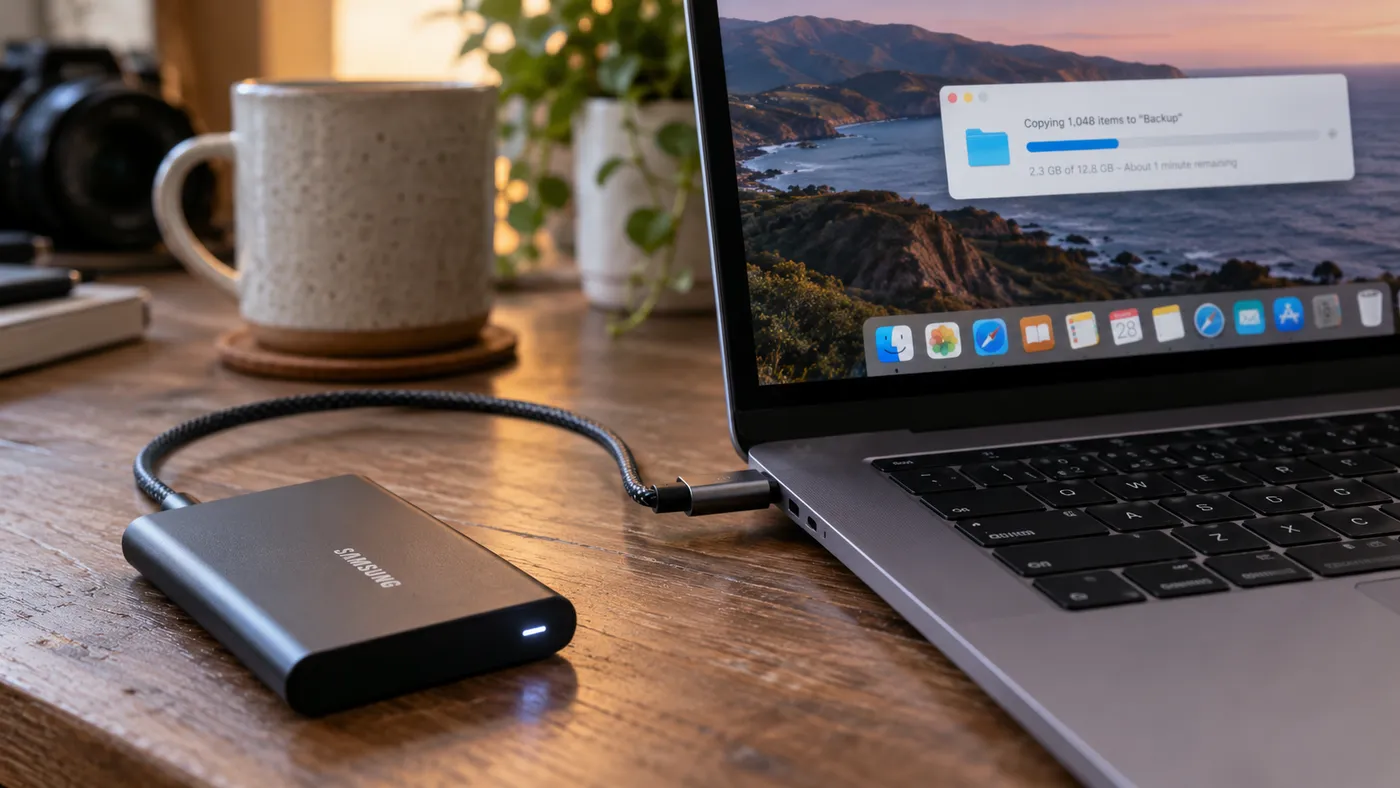
USB-C cables can differ dramatically in data speed. Here's a rough breakdown:
| Standard | Maximum speed | Typical use |
|---|---|---|
| USB 2.0 | 480 Mbit/s | Charging cables, basic peripherals |
| USB 5 Gbps / 10 Gbps / 20 Gbps | 5–20 Gbit/s | External SSDs, fast file transfers |
| USB4 (first version) | 20 or 40 Gbit/s | Monitors, docking stations |
| USB4 Version 2.0 / Thunderbolt 5 | 80 Gbit/s; up to 120 Gbit/s in one direction, particularly for bandwidth-intensive display traffic | High-resolution monitors, professional use |
These figures are the theoretical maximum speeds supported by the connection standards. Actual performance also depends on the computer's port and the connected device, not just the cable.
Surprisingly, some USB-C cables included with phones still operate at USB 2.0 speeds. Apple's USB-C Charge Cable, for example, supports 60 W charging but is limited to 480 Mbit/s for data transfers. Such a cable can be perfectly adequate for charging, yet transferring a large file from an external SSD may be tens or even hundreds of times slower than with the fastest cables.
2. Power: 60 Watts or 240 Watts?
Charging capabilities can vary significantly, too:
- Up to 60 watts: Standard USB-C cables can carry up to 3 amps, which works out to roughly 60 watts at 20 volts. That's enough for phones, tablets, and many smaller laptops.
- Up to 100 or 240 watts: Higher power levels require a cable capable of carrying 5 amps, with a small built-in chip called an e-marker. This chip tells the connected device how much power the cable can safely carry. Newer versions of the USB Power Delivery (USB PD) standard allow such cables to carry up to 240 watts, which can be useful for powerful gaming laptops.
The cable isn't the only factor, though. Three things together determine how quickly a device charges: the charging power and protocol supported by the device, the charger's output, and the cable's power capacity. The weakest link limits the charging rate. If you use a 100 W charger with a 60 W cable, you can get no more than 60 W. On the other hand, two well-made, standards-compliant 60 W cables will generally perform similarly when charging a phone; the difference becomes more noticeable with power-hungry devices.
You may also come across cables marketed as 100W. Under Türkiye's new marking system, the main power classes are 60W and 240W. One more thing to remember: a 240W label does not mean a cable also supports high-speed data transfers.
3. Video Output: Not Every Cable Can Connect to a Monitor
To connect a laptop or phone to a monitor over USB-C, three conditions must be met:
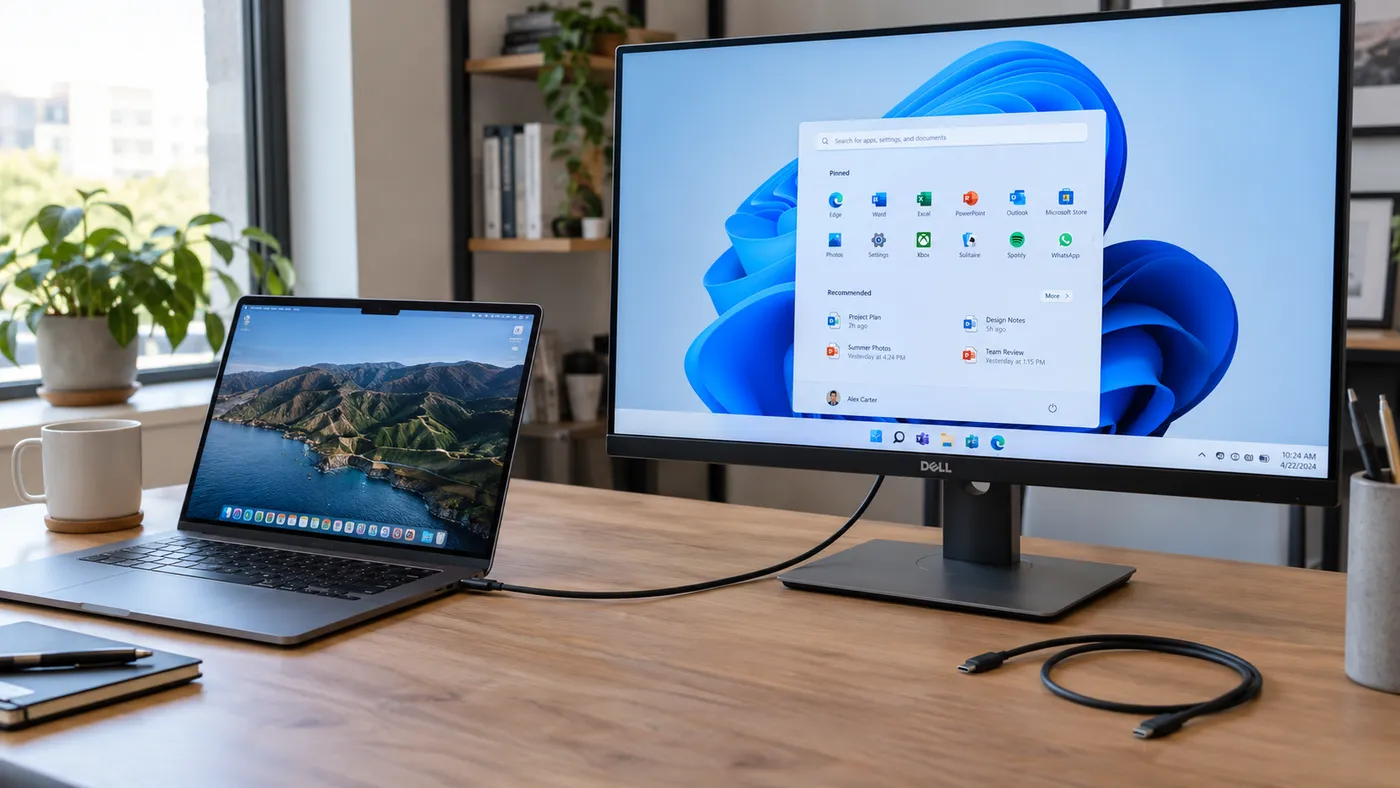
- The device must support video output over USB-C, usually listed as DisplayPort Alt Mode or Thunderbolt support.
- The cable must have the necessary connections to carry a video signal.
- The monitor's USB-C port must support video input. Some monitors use USB-C only for data or power.
Basic USB-C charging cables that only have USB 2.0 data connections cannot carry video via DisplayPort Alt Mode. If your monitor stays blank after you connect it, the cable could be one reason.
New Rules in Türkiye: Cables Will Have to Say How Much Power They Can Carry
One of the biggest problems with USB-C is that cables often have no useful markings at all. That is set to change in Türkiye.
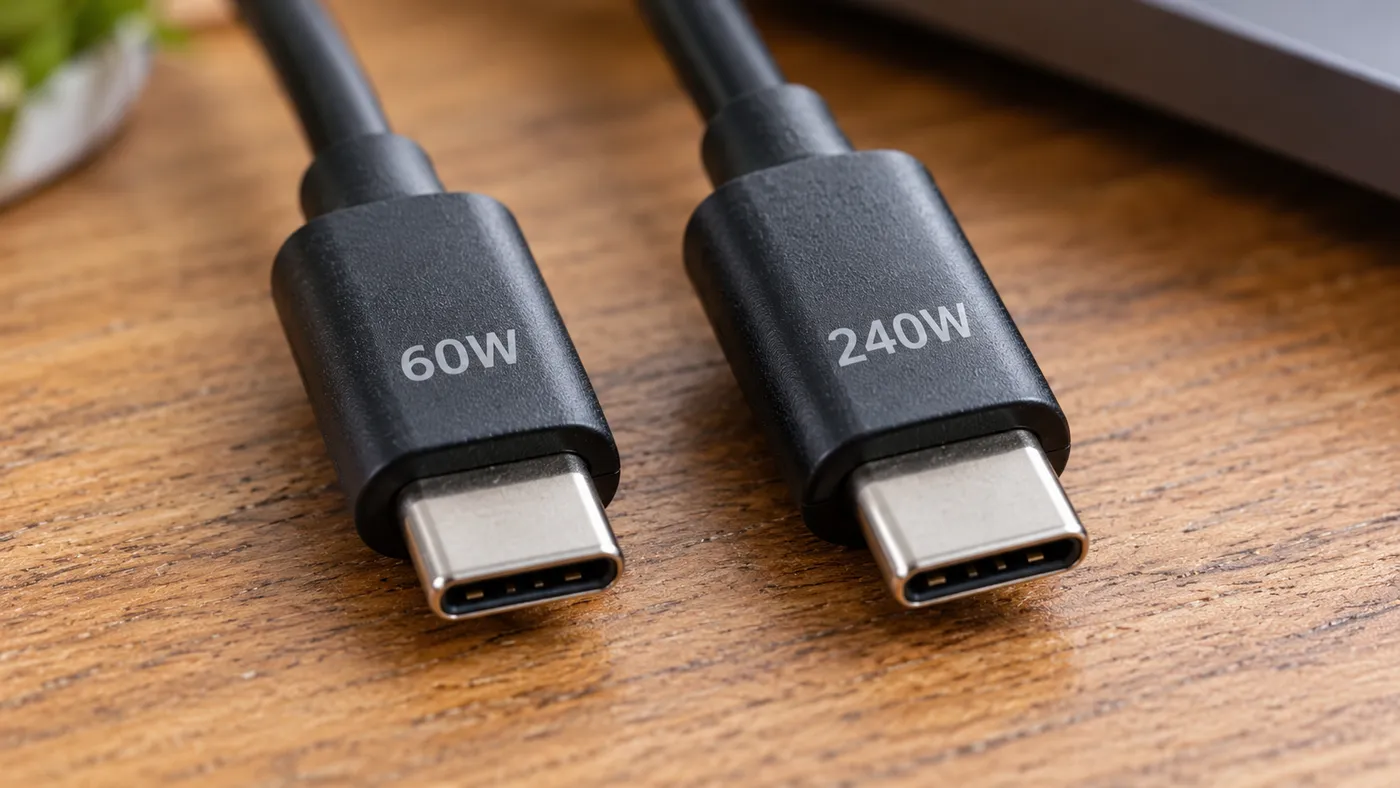
A communiqué from the Ministry of Industry and Technology, published in the Official Gazette on October 16, introduces new requirements aligned with the European Union's Regulation 2025/2052:
- Cables with USB-C plugs at both ends will have to display a "60W" or "240W" marking on their connector housings, according to their maximum supported power. This approach has already been used on USB-IF-certified cables since 2022; what's new is that it will become a legal requirement.
- Charging adapters covered by the interoperability requirements will need at least one USB-C output port and must support common charging standards such as USB PD. Certain special-purpose power supplies are exempt.
- A common charger logo will have to appear on covered, compliant adapters, their packaging, and their user manuals.
The communiqué's main technical requirements will begin to apply on December 14, 2028. Certain energy-efficiency requirements for some USB PD power supplies rated above 100 W have a transition period extending into 2030. The rules do not require you to replace charging cables or adapters you already own if they are working properly and remain compatible.
So, in a few years, checking the connector itself should make it easier to tell how much power a cable can carry. For data speed and video support, however, you'll still need to look at the specifications and packaging.
How to Choose the Right Cable
First, here's a quick guide to what matters for different uses:
| Use | What to look for |
|---|---|
| Phone charging | A compatible charging protocol and sufficient wattage for your phone |
| Laptop charging | A cable with verified specifications that meets the laptop's power needs (60W, 100W, or 240W) |
| External SSD | A 10, 20, or 40 Gbps connection supported by both the SSD and the computer |
| External monitor | A USB-C, USB4, or Thunderbolt cable that supports video output |
| Monitor + data + charging through one cable | Features supported by the computer, monitor, and cable together |
Whether you're buying a new USB-C cable or sorting through the ones in your drawer, these steps can help:
- Decide what you need it for. Are you charging a phone or laptop, connecting an external SSD, or hooking up a monitor?
- Check the cable and its packaging. Logos on USB-IF-certified cables can indicate their power capacity and, on high-speed models, their data speed as well. For example, you might see a "20Gbps / 240W" marking. If neither the cable nor its packaging provides any technical specifications, there's no reliable way to determine its data speed or power capacity just by looking at it. For laptop charging and high-speed transfers in particular, choose a cable with verified specifications.
- For monitors, choose a cable that supports video. A fully featured USB-C cable with the necessary connections for DisplayPort Alt Mode may be all you need. USB4 and Thunderbolt cables are also reliable choices with compatible devices, but they're not always necessary.
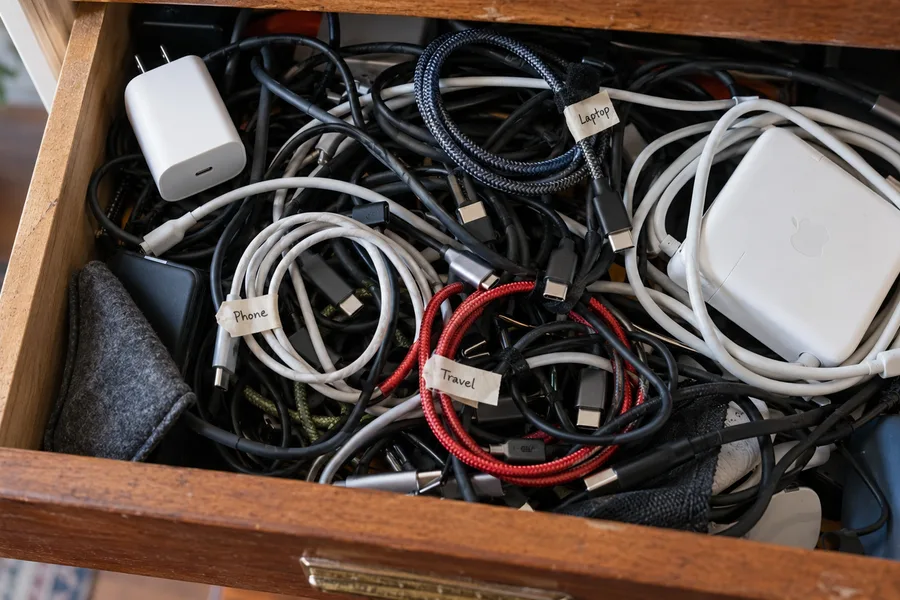
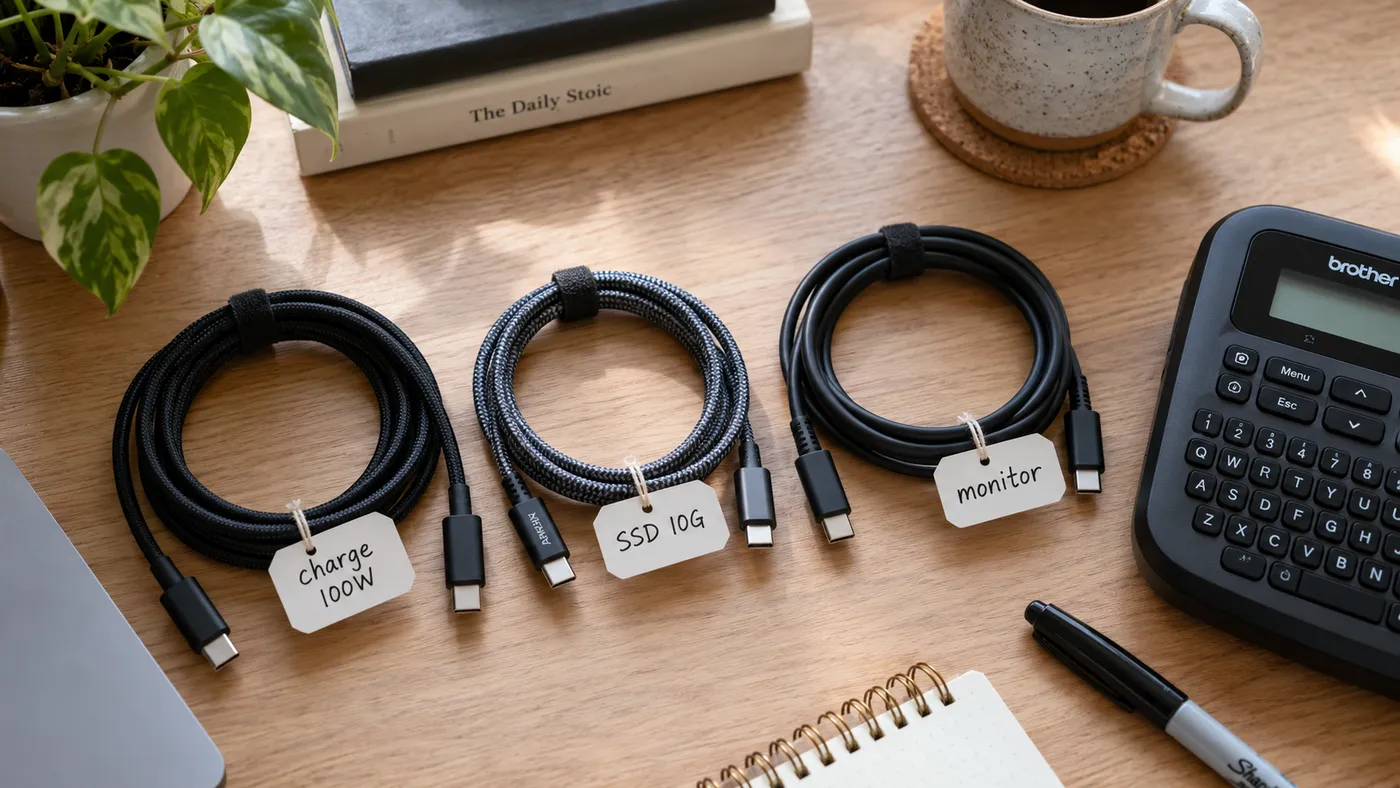
- Label your cables. A small tag is one of the easiest ways to keep track of which cable does what: "charging 100W," "SSD 10G," or "monitor," for example.
- Be wary of very cheap, unbranded cables. Build quality matters, especially at higher power levels. A poorly made cable can slow charging or cause overheating.
USB-C promised a world where we could connect everything with a single cable. We've largely achieved the connector part of that promise, but what happens inside the cable is still a little complicated. Once you start thinking separately about a cable's data speed, power capacity, and video capabilities, however, much of that confusion disappears.
TagsHardware
Related posts
All postsDLSS, FSR, XeSS Guide: What Do "Quality, Balanced, Performance" Mean in Game Menus, and Which Should You Choose?
DLSS on AMD: what does HelixSR actually offer?
The Winner of the Memory Crisis Is Clear: Samsung Expects $80 Billion in Operating Profit in Three Months. Its Mobile Division Is Losing Money